Showing posts with label Dynamics AX. Show all posts

Thursday, September 19, 2019

Parse JSON in pure X++

I decided to write a JSON parser in X++, because I couldn't find a useful implementation elsewhere. I wanted to avoid using external dll-based libraries.

It can handle strings, numbers (int and real), null-values and booleans. All kinds of linebreaks will be ignored.

It can be used like this:
str json = '{"foo": [1, 2, {"bar": 2}, {"bar": 3}]}';

AhkJSONObject ele = AhkJSONParser::parse(json);
AhkJSONArray arr = ele.get("foo");
AhkJSONObject obj = arr.get(3);
;

info('Demo 1: bar=' + obj.get("bar").strVal());
info('Demo 2: bar=' + AhkJSONParser::parse(json).getObjVal('foo').getArrayItem(3).getObjVal('bar').strVal());
info('Demo 3: bar=' + AhkJSONParser::parse(json).getObjVal('foo').getArrayItemWhere('bar', '3').getObjVal('bar').strVal());


Which will output:
Demo 1: bar=2
Demo 2: bar=2
Demo 3: bar=3

Please note the selection in demo 3, which makes it easy to select the correct array item. The project can be downloaded from the following url and is exported from AX 2009:
https://nc.ahk.dk/s/gwmTcb7N5y34SZH

The implementation is largely based on this python project:
https://github.com/eatonphil/pj/tree/master/pj

2020-01-20 update: I have updated the project with a few bugfixes, which should solve the two issues reported in comments.
2020-03-30 update: I have updated the project with a fix for parsing arrays as the outer type.

Friday, September 16, 2016

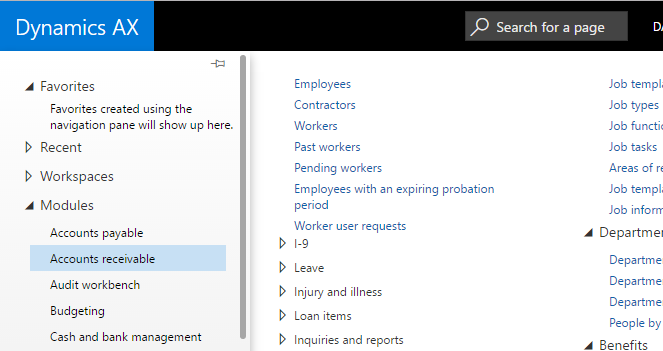
Fix space between menu items in the new AX7 menu

If you (like me) are bothered by the newly introduced space between menu items in the menu, then I have a solution :)


Screenshots

Original


With changed style

Procedure

Install the extension Stylish (or similar) in Chrome from the following link:
https://chrome.google.com/webstore/detail/stylish/fjnbnpbmkenffdnngjfgmeleoegfcffe?utm_source=chrome-ntp-icon

 And then set the style for cloudax.dynamics.com (or cloud.onebox.dynamics.com for local VM) to:

.modulesFlyout-last{
    margin-bottom: 0px !important;
}

.modulesFlyout-link{
    padding-bottom: 0px !important;
}

.modulesFlyout-LinkGroup.modulesFlyout-indent{
    margin-top: 0px !important;
    margin-bottom: 0px !important;
    padding-top: 1px;
    /*padding-bottom: 1px;*/
}

.modulesFlyout-LinkGroup:not(.modulesFlyout-indent){
    margin-bottom: 0px !important;
}

Monday, October 20, 2014

Show open windows in development view and switch between them

I just developed a simple form to show all open windows i development view. It has the following features:

  • Double-click an item to switch to the corresponding window.
  • Click "Close window" to close the selected window.
  • Auto-refreshes the view every 3 seconds.
  • Stays within the workspace (i.e. not "outside AX").
  • Stays open after switching windows (unlike the default Windows -> Windows)!
  • Works in both Dynamics AX 2009 and 2012.

It has greatly helped me manage my windows when developing...! :)

When imported, you should add a menu item pointing to the form (eg. in \Menus\GlobalToolsMenu on AX 2012).


Let me know if you need more features :)

Screenshot:


Wednesday, August 31, 2011

Show temporary table content


Run the following and you will be able to see the contents of a temporary table during runtime, which I find very helpful when debugging:

new SysTableBrowser().run(tmpTable.TableId, tmpTable);

To get it running, you need to overwrite the run method on SysTableBrowser with a new parameter profile:
public void run(tableId tableId, common tmpBuffer = null)
 and add the following line before formRun.run();
if (tmpBuffer.TableId < 60535)
    formRun.parmTmpData(tmpBuffer);

Overwrite license on Dynamics AX 4.0

My first post is regarding an issue I had a couple of weeks back, where AX crashed when overwriting an expired license with a new one (AX 4.0), which resulted in a broken database. After a lot of problems and not working solutions, I finally solved it, and of course I'll share the solution with you guys:
  1. Connect to the database and delete the content of the VALUE field of the first three lines in the SYSCONFIG table
  2. Stop the AOS service
  3. Delete the .aoi file in the appl directory
  4. Run "dir *.auc/s" on the client (deletes all cache files on the computer - you need to be on the drive of your Windows installation)
  5. If it detects any files, run "del *.auc/s" which deletes them.
  6. Start the AOS service
  7. Start the client and import licence again. Accept the synchronization
  8. If AX crashes again during import, do steps 2-6 again and it will work! :)
I've solved this problem successfully on several installations using the approach above, so try it! :)

Regards,
Anders